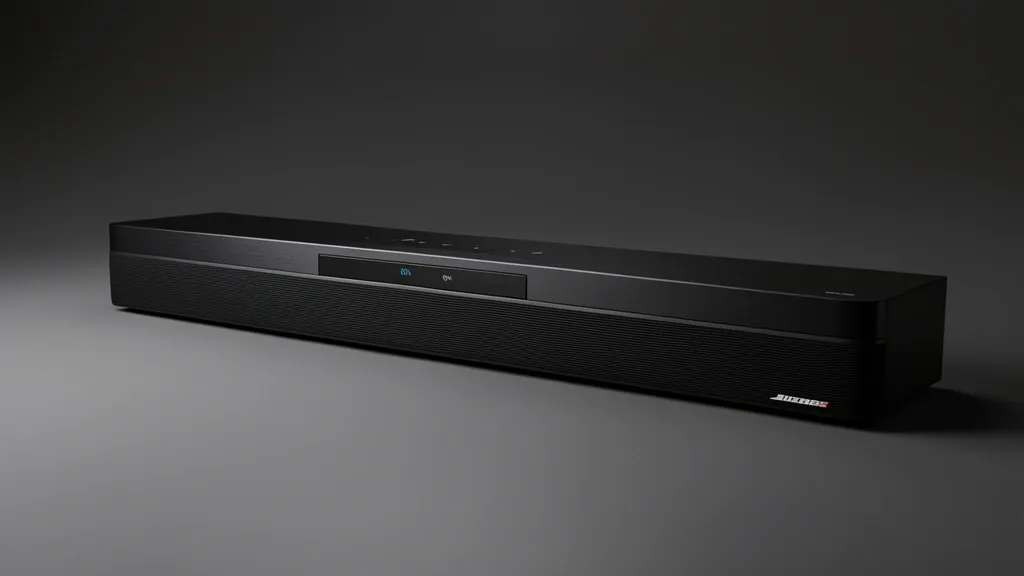
Getting “audiophile-grade” sound from a Bose soundbar isn’t just about plugging in a cable. It is about managing the signal chain from your streaming source to your TV, and finally to your soundbar’s DSP. I’ve spent years inspecting home theater setups, and I can tell you: most audio “failures”—the muddy bass, the weak dialogue, or the sync lag—aren’t hardware defects. They are configuration bottlenecks. This guide will show you how to optimize your Bose ecosystem for true Dolby Atmos virtualization and high-fidelity output.
Key Takeaways
- Room Acoustic Profiling must come before manual EQ tuning. Don’t fight your architecture; calibrate for it.
- Your TV’s HDMI eARC handshake is your audio’s gatekeeper. Incorrect settings will trigger forced compression.
- ADAPTiQ calibration isn’t a one-and-done setup. Move your furniture? You need to run it again.
Technical Overview: The Bose Acoustic Ecosystem
Your soundbar lives or dies by the handshake between the Bose Music app and its onboard digital signal processor (DSP). When you run an ADAPTiQ calibration, the system maps your room to define its soundstage and boost center-channel dialogue.
You need an uncompressed path for formats like Dolby TrueHD or DTS:X. If your TV forces extra conversion layers on the signal, you lose the spatial metadata the soundbar needs for its Atmos virtualization. The Bose Music app is your command center. Use it to keep that signal pure so the phase-array drivers can do their job.
Pre-Calibration Diagnostic Matrix
Before you start tuning, look at your room. Hardwood floors and floor-to-ceiling windows act like mirrors for sound, creating destructive standing waves. Heavy curtains and plush rugs absorb reflections and focus the soundstage.
If you swap out a sofa or move a bookshelf, your room’s acoustic coefficient changes instantly. You cannot fix a physical environment with software alone. Periodic ADAPTiQ recalibration is the only way to keep your system in sync with your home.
| Symptom / Error | Possible Cause | Quick Check | Resolution |
|---|---|---|---|
| Hollow Dialogue | Reflective interference | Check distance to nearest hard wall | Add acoustic dampening or recalibrate |
| Muddy/Boomy Bass | Corner/Boundary loading | Verify placement near room corners | Move module 6 inches from wall |
| Audio Dropouts | HDMI Handshake failure | Check cable spec/firmware | Power cycle display and soundbar |
| Audio Lag (Lip-Sync) | TV Latency | Check Audio Output settings | Set TV to “Passthrough” |
Prerequisites: HDMI Handshakes and Source Integrity
The HDMI eARC connection is the most common point of failure. If your TV is set to “PCM” or “Auto,” it might be downmixing your signal before it ever reaches the soundbar. This creates latency and strips away the rich, multi-channel depth you paid for.
Head into your TV’s expert audio settings. Set the output to “Pass-Through,” “Bitstream,” or “Auto” (only if you are sure it keeps the signal raw). You don’t want the TV trying to decode the audio. You want it to hand the raw data directly to the Bose hardware.
Check your cable. It must be “Ultra High Speed” certified (48Gbps). A budget HDMI cable will cause intermittent handshake timeouts, forcing your system to drop down to a basic 2.0 stereo signal. A bad cable effectively bricks your surround sound capability.
Once you’ve confirmed a clean signal, you can use the Bose Music app for EQ. Don’t touch these settings until your environment is stable and your handshake is verified. Tweaking settings on a broken signal chain just adds layers of distortion.
Core Workflow: Step-by-Step Tuning
1. The ADAPTiQ Foundation
ADAPTiQ is the map for your room’s reflections. Use the provided headset mic. Go to the Bose Music App > Settings > ADAPTiQ. Perform the test in five spots where you actually sit. Do not skip spots—the processor needs this spatial data to build a convincing virtual soundstage. Changes in furniture? Run it again.
2. Balancing Dialogue Clarity
Struggling with muffled speech? In the Bose Music App, go to Settings > Audio > Center Channel. Don’t crank it to +50 immediately. Move in increments of +10 to +20. Use a news broadcast as a reference, not a loud action movie. You want clarity, not a harsh, unnatural boost.
3. Bass and Treble Tuning
The Bose Bass Module is powerful. Setting it to 100 usually introduces “boominess” that drowns out the rest of the mix. Aim for 30 to 50 for a balanced, cinematic feel. If the audio sounds “dark,” bump the Treble setting (+10 to +20) to clear up the sibilance in voices without making the audio sound metallic.
4. Setting Surround Levels
A common mistake is turning rear speakers up too high. They should provide subtle ambiance, not overpower the front soundbar. Start at 30. Only bump them up if you are watching high-quality 5.1 or Dolby Atmos content, where the rear channels have distinct, intentional audio data.
Emergency Recovery: Troubleshooting Audio Sync and Drops
Audio drops during a movie are a total buzzkill. Use these protocols to reset the system.
Hard Power-Cycling
Don’t just use the remote. Perform a full power cycle. Unplug both the soundbar and the TV from the wall for at least 60 seconds. This flushes the HDMI-CEC handshake buffer. Plug the soundbar in first, wait two minutes for it to boot, then power on the TV. This forces a clean, fresh connection.
Firmware Connectivity Fix
App not seeing your soundbar? Check the light bar. A blinking white light usually means a failed update. Check Settings > Technical Info in the app. If you’re stuck, do a factory reset: hold Power and Volume Down on the remote for 10 seconds until the bar glows amber. You will need to re-add the device to your account.
Pitfalls and Long-Term Acoustic Hygiene
Avoid “user-induced” clipping. Pushing every slider to 100 forces the drivers to struggle at the crossover points, turning your audio into a muddy mess. You’ll be tempted to turn the volume up, creating a cycle of distortion that wears out the hardware.
Keep the soundbar out of closed cabinets. Bose systems use side-firing speakers; if you block them, the virtualization fails. Ensure your flow is clear, your TV is set to ‘Passthrough’, and you are letting the soundbar’s own DAC do the work. That is the secret to a professional-grade home theater.
Frequently Asked Questions
Why does my Bose soundbar require periodic ADAPTiQ recalibration?
ADAPTiQ maps your room’s unique reflections. If you move your furniture or swap your rug, the way sound bounces through your space changes. Recalibrating updates the DSP to compensate for the new architecture, ensuring your audio remains balanced.
How do I fix the imbalance between action sound effects and dialogue clarity?
This is usually dynamic range compression. Ensure your TV is set to ‘Bitstream’ or ‘Passthrough’. In the Bose Music app, boost the Center Channel by 10-20 increments and dial back the Bass. This brings voices to the front without letting action sequences swallow the dialogue.
Should I optimize my TV’s HDMI settings before adjusting Bose audio levels?
Yes. Your TV’s eARC/HDMI-CEC settings are the gateway for your audio. If your TV is set to ‘PCM’, it’s downmixing your surround signal. Getting the raw bitstream from your source to your Bose soundbar is the #1 way to ensure high-fidelity performance.
What is the recommended bass level for standard home theater viewing?
Set your bass between 30 and 50. Maxing it out at 100 often leads to clipping and unwanted wall buzzing. You want clean, punchy bass that you can feel during intense scenes, not a constant drone that ruins subtle dialogue.
How does the Bose Music app help in customizing audio output for small rooms?
Small rooms reflect sound quickly, leading to echo and mud. Use the app to lower your surround levels and pull back the bass gain. ADAPTiQ is especially critical in small rooms because it helps the processor identify and cancel out the standing waves hitting your ears from parallel walls.