I have spent 15 years in troubleshooting, and I can tell you this: the Apple iOS Iphone Eq Settings are the most misunderstood piece of tech in your pocket. Most users treat the iPhone Music EQ like a simple volume knob. It isn’t. It is a sophisticated digital signal processing (DSP) layer that alters frequency curves before the signal ever hits your DAC.
If you want to move beyond factory stock sound and really dial in your audio, you need to understand how software presets interact with your specific hardware.
Key Takeaways
- The iPhone EQ is a global post-processing feature applied after decoding but before the audio reaches your drivers.
- Presets like “Bass Booster” are not one-size-fits-all; they are hardware-dependent and often trigger clipping on high-sensitivity gear.
- Fixing sound issues requires a logical approach: validate the software layer first, then check your hardware and signal path.
Technical Overview of Iphone Eq Settings
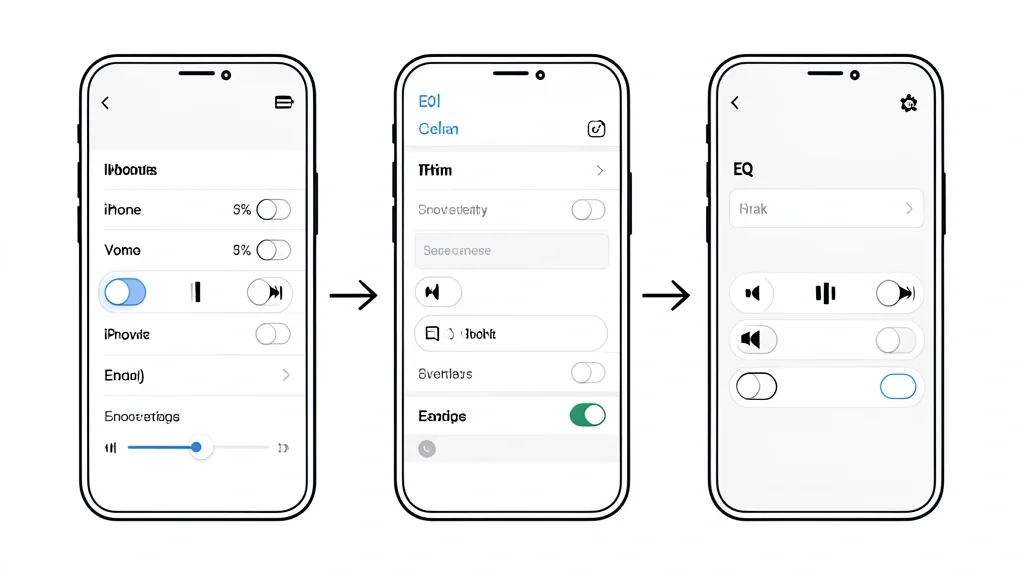
The iOS Equalizer runs a multi-band digital parametric process to modify gain across specific frequency ranges. When you toggle settings in Settings > Music > EQ, the system forces a “curve” onto every track played through the native Music app or authorized APIs.
Every iPhone uses a compact Cirrus Logic audio codec. This hardware is built for efficiency, not studio-grade output. Apple’s EQ is designed to patch the physical limits of small drivers (like AirPods), but pushing these gains creates harmonic distortion if you hit the digital ceiling.
Crucially, Apple’s EQ is non-additive. If you run a third-party equalizer on top of the system EQ, you create a compound processing chain. This almost always leads to phase shifting and digital artifacts, which is why your audio sounds “hollow” or “tinny” when you stack profiles.
The “Late Night” setting is the most technical tool in the menu. It is a dynamic range compressor. It crushes high-amplitude sounds while lifting the floor of quiet passages. It is perfect for trains or flights, but it absolutely strips away the character of a high-fidelity master.
Finally, check your “Sound Check” feature. It attempts to match relative volume levels across your library. If this clashes with your manual EQ adjustments, you will get an inconsistent, jerky signal that feels like a hardware failure.
Diagnostic Matrix & Symptom Check
Before you assume your drivers are blown or your Lightning-to-3.5mm adapter is junk, run this diagnostic. Troubleshooting is just pulling on threads until the knot comes loose. Use this chart to identify if your problem is a software conflict, a cache glitch, or a physical failure.
| Symptom / Error | Possible Cause | Quick Check | Resolution |
|---|---|---|---|
| Clipping/Cracking at high volumes | Digital Headroom Saturation | Switch EQ to “Off” | Disable EQ or reduce input gain if using an external DAC. |
| Volume drops randomly | Sound Check Interference | Compare settings between tracks | Toggle off “Sound Check” in Music Settings. |
| “Tinny” or Hallow Mids | Frequency Phase Cancellation | Disable all dynamic enhancements | Reset all EQ presets to “Off” and restart Music app. |
| No Audio in specific apps | API Permission Restriction | Test native Music app vs. Spotify/Tidal | Check Background App Refresh and Privacy permissions. |
| Distorted low-end frequencies | Over-saturation of gain | Test with low-impedance earbuds | Remove “Bass Booster” setting; reduce overall volume levels. |
If the distortion sticks around with EQ “Off,” start a deep-level validation. Use a non-conductive pick to clear lint out of your Lightning or USB-C port. Compacted pocket lint can interrupt data handshaking, causing impedance spikes that mimic software errors.
Also, watch your impedance. If you are running audiophile-grade gear (250+ ohms) without a dedicated amp, your iPhone literally lacks the current to drive them. Boosting the digital EQ won’t help; it will just cause the DAC to choke on the additional signal load.
Keep your firmware current. Apple pushes DSP driver updates through iOS patches. If your phone is outdated, it might not be talking to your headphones correctly, leading to inconsistent EQ behavior.
Step-by-Step Actionable Resolution Guide
1. Implementing Global Eq Presets (The Native Method)
This modifies the DSP for the entire Music app. Use this if you want a quick, set-it-and-forget-it change. For specific vehicle adjustments, refer to our guide on Best iPhone EQ Settings For Cars.
- Open Settings.
- Scroll down and tap Music.
- Tap EQ under the Playback menu.
- Choose your profile. “Bass Booster” for hip-hop, “Rock” for more punch, or “Jazz” for separation.
- Pro-Tip: If it sounds muddy, you have pushed the gain too far. Reset to “Off” and start over.
2. Leveraging Headphone Accommodations (The Audiological Adjustment)
This is a “hidden” feature that tunes audio to your actual ears rather than just a blanket frequency curve.
- Go to Settings > Accessibility.
- Tap Audio & Visual.
- Select Headphone Accommodations and toggle it ON.
- Pick “Balanced Tone,” “Vocal Range,” or “Brightness.”
- Set the Adjust Tune For slider to “Strong” for the most noticeable difference.
- If you use AirPods Pro or Max, run the Custom Audio Setup wizard at the bottom of the screen.
3. Third-Party Hardware-Specific Tuning
Stop using the phone’s EQ if your headphones have a dedicated app. Offload the processing to the hardware itself. For users of specific brands, see our Bose Equalizer Settings For Best Audio Output.
- Download the companion app (Sony Headphones Connect, Bose Music, etc.).
- Connect via Bluetooth.
- Open the app and set the EQ there.
- This changes the hardware firmware directly, so your settings stay with you even if you switch to a laptop or tablet.
Emergency Fixes & Common Pitfalls to Avoid
Emergency Fix: Audio “Clipping” & Harsh Distortion
If you hear crackling after enabling a boost preset, you have hit “digital clipping.” You are overdriving the signal past 0dB. Resolution: Shut off the EQ immediately. Use “Headphone Accommodations” instead. Stop running the volume at 100% when using heavy profiles; this forces the DAC to push past its physical threshold.
Common Pitfall: The “Double EQ” Trap
Running an EQ in your iPhone Settings while running an EQ inside Spotify or another app is a recipe for disaster. You end up with muddy, smashed-together audio. The Rule: One layer of EQ only. If you like the app’s internal controls, set your Global iPhone EQ to “Off.”
Conclusion: Perfecting Your Sound Profile
Optimizing your Iphone Eq Settings requires a balance between digital processing and physical hardware capability. By moving away from aggressive boosters and toward precise Headphone Accommodations, you can overcome common audio artifacts. Always prioritize a “clean” signal chain by avoiding stacked EQs, and verify your external hardware connections to ensure no physical debris affects your playback quality. Use these settings as a baseline to explore better audio fidelity today.
Frequently Asked Questions
What is the most common cause of iPhone EQ settings issues?
User-induced signal distortion. People try to “force” bass into hardware that can’t handle it. Or, they don’t realize that system-wide iOS EQ doesn’t apply to apps like Spotify or Tidal, which is why those apps sound different than Apple Music.
How do I fix iPhone EQ settings without losing data?
Reset your settings without nuking your phone. Go to Settings > General > Transfer or Reset iPhone > Reset > Reset All Settings. This clears out your audio and EQ preferences back to factory state while leaving your apps, photos, and music library completely untouched.
What specs or settings are recommended for best performance?
For high-fidelity, use “EQ OFF” and enable “Lossless Audio” in Music settings. If the sound is too flat, use “Headphone Accommodations” calibrated to your specific profile. Avoid the “Rock” or “Spoken Word” presets for pure listening.
When should I replace or upgrade components?
If you are constantly tweaking the EQ to fix “muddy” sound across multiple devices, your headphones are the weak link. Stop using DSP to polish a bad frequency curve and invest in a set of reference-grade headphones with a flat native response.
Why do some apps override my iPhone EQ settings?
Many apps use independent audio rendering engines to manage their own features like crossfading or volume normalization. Because these apps control the digital path before it reaches the system, they bypass your iOS global settings. You have to adjust those profiles inside the app’s settings menu.