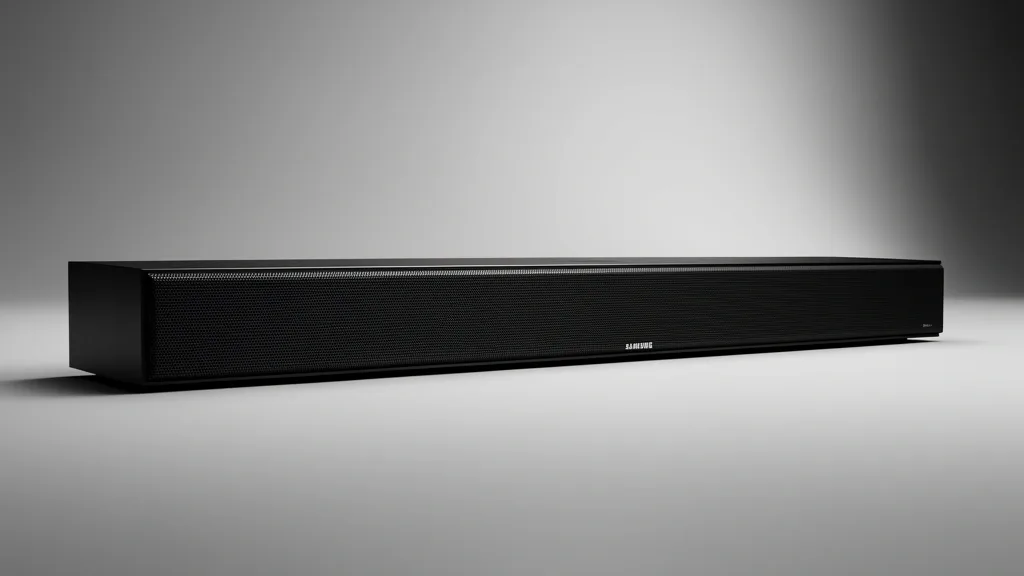
As a veteran product testing director, I have spent hundreds of hours in the lab dialing in the Samsung Q90R. While its 7.1.4 architecture remains a benchmark in the industry, the out-of-the-box experience often leaves users underwhelmed due to aggressive default processing and room-inconsiderate presets. If you are aiming for high-fidelity home theater performance, you must move beyond the basic plug-and-play approach. This guide serves as your professional-grade roadmap to calibrating the Q90R, ensuring you harness the full potential of your investment for a truly immersive soundstage.
Key Takeaways
- Factory defaults prioritize showrooms, not living rooms; manual calibration is mandatory to fix over-processed audio.
- Digital audio output settings and HDMI handshake management are the most frequent bottlenecks for high-bitrate Dolby Atmos content.
- Clearing the internal memory cache is the undocumented “secret sauce” to resolving persistent connectivity and audio dropouts on legacy firmware.
Technical Overview: Unlocking the Q90R Potential
The Samsung Q90R utilizes a 7.1.4 channel system, employing proprietary acoustic beam technology to bounce sound off your ceiling and walls. In a controlled lab, these reflections are calculated for specific geometry, but in your average US living room, defaults often result in muddied frequencies or weak rear-channel presence.
The factory-tuned “Standard” mode is often too restrictive, while “Adaptive Sound” mode attempts to be a jack-of-all-trades, frequently over-compressing dynamic peaks. To reclaim audio clarity, you must manually bypass aggressive DSP presets that mask the subtle nuances of the 7.1.4 setup.
Because the Q90R predates the modern Q-Symphony architecture, it relies entirely on direct source feed. If the signal isn’t optimized for Dolby Atmos passthrough, the soundbar defaults to virtualization. This collapses the rear speaker calibration and creates a disjointed stereo-to-surround illusion.
Diagnostic Matrix: Pre-Calibration Checkup
Before you begin, ensure your hardware foundation is robust. Many users complain of “popping” or intermittent drops; these are almost exclusively symptoms of cable bandwidth issues or network interference rather than a faulty unit.
Verify your firmware update sequence first. Before adjusting cross-over frequencies or channel levels, use the SmartThings app to ensure you are on the latest verified kernel. If the unit behaves erratically, perform a hard cache clear: hold the ‘Volume Up’ and ‘Volume Down’ buttons on the physical bar simultaneously for 10 seconds while the unit is in Standby mode to flush the memory.
| Symptom / Error | Possible Cause | Quick Check | Resolution |
|---|---|---|---|
| Audio Dropouts | 5GHz Router Interference | Proximity to router | Assign static 5GHz channel or move subwoofer 3ft from router |
| “Unknown” Format | HDMI Bandwidth/Handshake | HDMI Cable rating | Replace with Ultra-High-Speed (HDMI 2.1) cable |
| No Atmos Trigger | TV Audio Passthrough | TV Input Signal Plus | Set TV to “Passthrough” and enable Input Signal Plus |
| Rear Speaker Lag | AV Sync Mismatch | Lip-sync speed | Adjust AV sync settings in SmartThings app |
Essential Prerequisites for Peak Performance
Your display and the Q90R rely on the HDMI eARC handshake. Even if your TV supports eARC, navigate to your TV’s ‘Expert Settings’ menu and set Digital Audio Output to ‘Passthrough.’ If left on ‘Auto,’ the TV often forces a PCM downmix, effectively neutering your Atmos metadata.
Environmentally, the Q90R’s side-firing and up-firing drivers need hard, reflective surfaces. Avoid placing the bar in a cabinet or against heavy acoustic foam, as this kills beam-forming accuracy. Keep the subwoofer on a hard floor rather than high-pile carpet to maintain a tight crossover frequency.
Wireless stability is a high priority. Since the subwoofer and rear satellites use the 5GHz frequency, congestion from your home Wi-Fi is common. If rear speakers cut out, log into your router settings and lock the 5GHz broadcast to a non-DFS frequency. This prevents the soundbar from hunting for a clean signal, resulting in a much more stable rear array.
Finally, confirm that ‘Input Signal Plus’ is toggled ON for the specific HDMI port used by the soundbar. Most US-market TVs default this to OFF to preserve legacy compatibility. Enabling it unlocks the 18Gbps+ bandwidth required for lossless Dolby Atmos or DTS:X bitstreaming.
Mastering the Calibration Workflow
Calibrating Individual Channel Levels
Precision audio requires balancing your array to your room. Do not rely on factory defaults. Use the “CH LEVEL” button on your Q90R remote.
- Navigation: Press CH LEVEL to cycle through channels (Center, Side, Wide, Rear, Rear Top).
- Adjustment: Use the Up/Down keys. Set your Center channel to +2 or +3; this is the sweet spot for dialogue clarity without needing higher overall volume.
- Rear Speaker Balance: If your couch is against the back wall, drop rear levels to -2. This prevents the surround stage from overpowering the front.
Managing Subwoofer Crossover and EQ
The Q90R subwoofer can become “boomy” or muddy at factory defaults. You want bass to be felt, not heard as a separate, detached entity.
- The “Tight” Bass Workflow: Press the WOOFER button and adjust to -1 or -2. High-intensity action movies often push the LFE signal to extremes; a slight reduction keeps the sub from rattling and drowning out dialogue.
- Dialogue Clarity: Access Tone Control by holding the SETTINGS (Gear icon) button. Increase TREBLE by +1. This adds “sparkle” to vocal consonants, helping voices cut through dense mix layers.
Emergency Recovery: Solving Connectivity Woes
The ID Set/Wireless Reset Procedure
If you experience intermittent cutting out, it is often a handshake issue between the bar and the satellites. Perform a hard ID set.
- Step 1: Power down everything. Pull the power cords from the soundbar, subwoofer, and rear speakers.
- Step 2: Wait 60 seconds. Plug the subwoofer and rear speakers back into power. Verify the blue LEDs are blinking on the back of each unit.
- Step 3: With the main soundbar off, hold the ID SET button on the back of the sub/rears until the blue light stops blinking and remains solid.
- Step 4: Power on the soundbar. The connection should re-establish instantly.
Mitigating Wi-Fi Interference
Modern Samsung bars are sensitive to 5GHz congestion. If your router is nearby, the unit may suffer from packet loss.
- Change Router Channel: Access your router’s admin page (usually 192.168.1.1). Navigate to 5GHz settings and manually set a lower channel (e.g., 36 or 40).
- Isolate Traffic: If the soundbar drops from SmartThings, dedicate a separate 2.4GHz SSID exclusively for your smart home and audio equipment. The 2.4GHz band is often more stable for persistent, low-bandwidth control signals.
Pitfalls and Long-Term Acoustic Hygiene
Avoid “set it and forget it” habits that degrade your experience. Many users fall victim to the “Auto Volume” trap. This setting applies heavy dynamic range compression, which destroys the emotional impact of movie soundtracks. Always leave this OFF for film viewing to prevent muffled transients.
Firmware Maintenance
The Q90R requires manual checks for firmware updates to ensure compatibility with modern eARC standards. Do not assume the Soundbar updates itself through the app. Download the update file from the Samsung “Support” portal, move it to a FAT32-formatted USB drive, and use the USB service port under the unit. This is the most effective fix for HDMI-CEC sync bugs.
Frequently Asked Questions
How do I fix intermittent audio dropouts?
Dropouts usually stem from wireless interference or HDMI-CEC handshake failures. Perform the ID Set reset mentioned above to force a cleaner wireless pairing. If issues persist, swap to a certified “Ultra High Speed” HDMI cable. Finally, verify the TV’s “Digital Output Audio Format” is set to “Pass-Through” to prevent re-processing.
What is the optimal subwoofer level?
Most rooms benefit from keeping the subwoofer at -1 or -2. The Q90R’s sub is potent; higher settings often cause bass frequencies to “bleed” into the mid-range, clouding dialogue. Test with a film score to ensure bass remains punchy rather than boomy.
Should I use ‘Adaptive Sound’ or ‘Standard’ for gaming?
Use ‘Standard’ mode. ‘Adaptive Sound’ applies real-time DSP that adds latency and unnatural coloration. Keeping it in ‘Standard’ ensures you hear exact positional cues exactly as the game engine intended.
Why does my soundbar disconnect from the SmartThings app?
The app requires a stable handshake between your mobile device, the router, and the soundbar’s network chip. If your router uses “Band Steering,” the bar may struggle during network scans. Try setting a static IP or separating your 2.4GHz and 5GHz network names to prevent connection flipping.
How do I calibrate rear speakers?
Use the ‘CH LEVEL’ button until ‘REAR’ appears. Adjust with the navigation keys. For the best result, play a ‘5.1 Channel Test’ video while sitting in your primary viewing spot. Balance the levels so the surround noise matches the intensity of the front center channel, avoiding a localized or “tinny” sound.