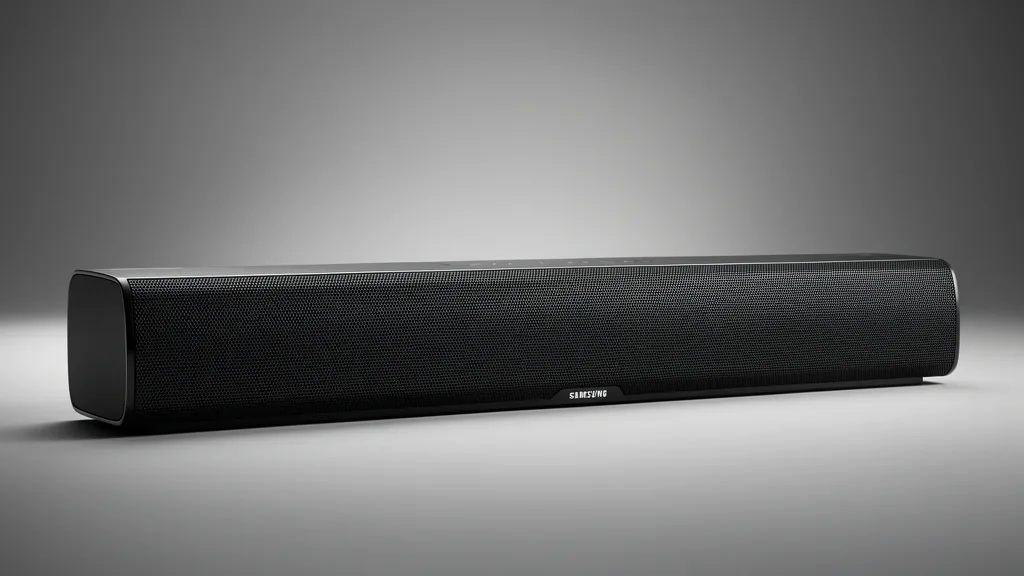
I’ve seen massive home theater setups fall flat not because of cheap hardware, but because of a weak signal chain between Samsung soundbars and their host TVs. Mastering Samsung’s audio ecosystem means ditching the “set it and forget it” mindset. You need to understand how the Digital Signal Processing (DSP) talks to your raw metadata.
Whether you’re running Samsung Q-Symphony or standard Dolby Atmos passthrough, the effectiveness of your sound mode hinges on your upstream audio bitstream configuration. This guide is your technical baseline for ensuring your system delivers clean, precise audio rather than muddy, synthetic noise.
Key Takeaways
- Standard mode preserves bit-perfect signal integrity, while Adaptive Sound uses real-time re-mapping to boost dialogue intelligibility.
- Virtualization and surround expansion fall apart if you force PCM bottlenecks; always prioritize Bitstream or Pass-through.
- System performance relies on a locked-in handshake between your eARC settings and the soundbar’s current firmware.
Technical Breakdown of Samsung Audio Modes
The Standard sound profile functions as a 1:1 playback engine. It strips away extra virtualization to ensure your source metadata—stereo or multi-channel—hits the drivers without unnecessary coloring. This is the only mode that avoids aggressive frequency dipping, making it the top pick for listeners who want the original, unadulterated mix.
Adaptive Sound powers an AI-driven DSP that adjusts your profile frame-by-frame. By monitoring frequency balance and dialogue enhancement thresholds, the processor boosts midrange clarity during low-volume output. It’s an effective fix for the common “muffled voice” effect in streaming services.
Surround Sound Expansion maps legacy stereo or 5.1 inputs across your entire driver array, including up-firing channels. It uses phase-shifting and cross-channel delays to create a wider stage. Be careful—this can occasionally introduce subtle spatial inaccuracies in high-bitrate, complex content.
Game Pro Mode is the most aggressive virtualization processing in the Samsung lineup. It reconfigures the DSP for low latency while pushing high-frequency cues like footsteps or spatial ambient effects. It gives you a real competitive edge in fast-paced gaming.
The Diagnostic Matrix: Matching Modes to Media
| Content/Media | Recommended Mode | Frequency Bias | Why It Works |
|---|---|---|---|
| Movies (Atmos/DTS:X) | Standard | Neutral/Linear | Protects original spatial metadata and object placement. |
| Sports/Talk Shows | Adaptive Sound | Mid-Range Boost | Lifes narrator voices above ambient crowd noise. |
| Competitive Gaming | Game Pro Mode | High-Frequency | Sharpens directional cues for better situational awareness. |
| Music/High-Res | Standard | Full Spectrum | Prevents DSP colorization of your recordings. |
| Standard 2.0 TV | Surround Expansion | Spatial Expansion | Simulates a larger soundstage from limited 2-channel audio. |
Choosing the right mode is a trade-off between fidelity and flavor. When using eARC settings for lossless formats, avoid expansion modes; they can clash with the decoder’s ability to properly render height channels in Dolby Atmos tracks.
System Prerequisites for Uncompromised Audio
Professional audio starts with the physical connection. You must use HDMI 2.1 certified cables to handle the massive data throughput required for uncompressed Dolby Atmos passthrough. If you run a cable that can’t keep up, the system defaults to lossy formats, wasting your hardware investment.
Check your TV’s audio settings immediately. Set Digital Output Audio Format to “Pass-through” or “Auto” instead of “PCM.” If you leave it on “PCM,” your TV force-decodes the audio internally, stripping away the spatial metadata your soundbar needs for high-end virtualization processing. That “flat” feeling? It’s almost always a PCM bottleneck.
Keep your firmware updated. Samsung regularly pushes patches that fix the link between Samsung Q-Symphony-enabled TVs and their bars. Old firmware often causes “handshake” errors between the eARC interface and your soundbar’s DSP, leading to audio dropouts or failed multi-channel detection.
| Symptom / Error | Possible Cause | Quick Check | Resolution |
|---|---|---|---|
| Audio Dropouts | eARC Handshake Lag | Verify HDMI certification | Cycle eARC off/on; update bar firmware. |
| Flat/Tiny Sound | PCM Output Bottleneck | Check TV Audio Output | Switch TV output to Bitstream/Pass-through. |
| Muffled Dialogue | Over-active DSP | Check Dynamic Range | Use Adaptive Sound; turn off compression. |
| Atmos Missing | Broken signal path | Check Input source | Use HDMI 2.1 cable; enable HDMI eARC ports. |
Control the signal at the source and let the soundbar handle the heavy lifting. Consistency in your audio bitstream configuration is the single biggest factor in unlocking the full potential of your Samsung gear.
Execution: Optimizing Your Soundbar Workflow
Workflow A: Switching Modes via SmartThings
The SmartThings app offers granular control that the remote sometimes hides. Ensure your bar is added to your Samsung account.
- Open the SmartThings app.
- Select your specific soundbar model.
- Go to Device Settings or the main dashboard.
- Toggle the Sound Mode dropdown. Select Standard, Surround, Game, or Adaptive.
- Your selection persists until you change it or a source (like a game console) triggers an override.
- Verification: Watch the soundbar’s LED display. It will scroll the mode name (e.g., “ADAPTIVE SOUND”) once switched.
Workflow B: The “Sound Control” Remote Method
If you prefer the physical remote, you need to use the “Sound Control” menu, which groups modes with EQ settings.
- Press the Sound Control (gear icon) button.
- Cycle through the prompts. It usually starts with tone adjustments (Bass/Treble) before reaching Sound Mode.
- Once you see your desired mode on the LED display, stop pressing.
- If your model supports Game Pro, hit the button until it appears, then use the Volume + / – keys to toggle between “Game” and “Game Pro.”
Troubleshooting Soundbar Pitfalls
Solving “Mode Whiplash”
If your soundbar flips modes unexpectedly, it’s likely your TV’s Auto Game Mode feature. The TV sends an HDMI-CEC command to the bar whenever it senses a console signal. If you hate this, disable “Auto Game Mode” in your TV’s picture settings—just be aware that you might add a few milliseconds of input lag to your games.
Fixing Lip-Sync Issues
Audio lag usually stems from heavy post-processing. “Surround” and “Adaptive” modes do a lot of math in real-time, which sometimes causes a delay.
- Use your remote to access the “Sync” setting under Sound Control.
- Bring the value closer to 0ms.
- Double-check that your TV is set to “Pass-Through” or “Auto.” PCM conversion adds a massive, unnecessary processing delay.
Advanced Calibration and Maintenance
Room Calibration
High-end models (like the Q990 series) use SpaceFit Sound. Use the SmartThings app to trigger the calibration test. It pings the room to adjust for reflections off your walls and furniture. Re-run this whenever you rearrange the living room.
Channel Level Tuning
Don’t settle for the factory defaults. For a tighter soundstage, manually boost your center and rear channels. A solid starting point: Fronts +2, Center +3, Treble +2, and Bass +5. This cuts the “boomy” artificial sound and keeps dialogue locked, even when the action gets loud.
Frequently Asked Questions
Is ‘Adaptive’ better than ‘Standard’ for high-end Blu-ray movies?
Use ‘Standard’ for uncompressed Dolby TrueHD or DTS-HD Master Audio tracks. It gives you the pure, untouched mix. Use ‘Adaptive’ only if you’re in a room with poor acoustics or you’re struggling to hear dialogue in a compressed streaming mix.
Why does Game Mode sound so different?
Game Pro is tuned for positional awareness. It pushes high-frequency detail like footsteps and gunfire while widening the stage. You lose some tonal accuracy, but you gain a massive advantage and spatial clarity in shooters.
Does Surround mode hurt Dolby Atmos effects?
It can introduce “mud.” Surround mode tries to fake a wider stage, which can overlap with the precise, object-based metadata of Atmos. ‘Standard’ mode provides the cleanest path for overhead sound, which is exactly why it’s the preferred setting for Atmos movies.
How do I set up eARC the right way?
Go to your TV’s ‘Expert Settings’ under Sound. Set ‘Digital Audio Output’ to ‘Pass-Through.’ This keeps the bitstream raw and clean, meaning your soundbar is the one doing the real work, not your TV.
Voice Enhance vs. Adaptive Sound—which one should I use?
‘Adaptive Sound’ is a global change to the entire profile. ‘Voice Enhance’ is a surgical strike on vocal frequencies. Use ‘Voice Enhance’ as a secondary tool if you’re already using Standard or Surround but still can’t hear the actors. Using both at once often makes the audio sound thin and brittle.