Key Takeaways
- Switch from Limited to Full RGB output to stop your screen from looking washed out.
- Keep desktop color depth at 32-bit to ensure HDR content renders correctly.
- Use ‘Override to Reference Mode’ to stop your monitor from applying heavy-handed post-processing during creative work.
Understanding the Nvidia Color Pipeline
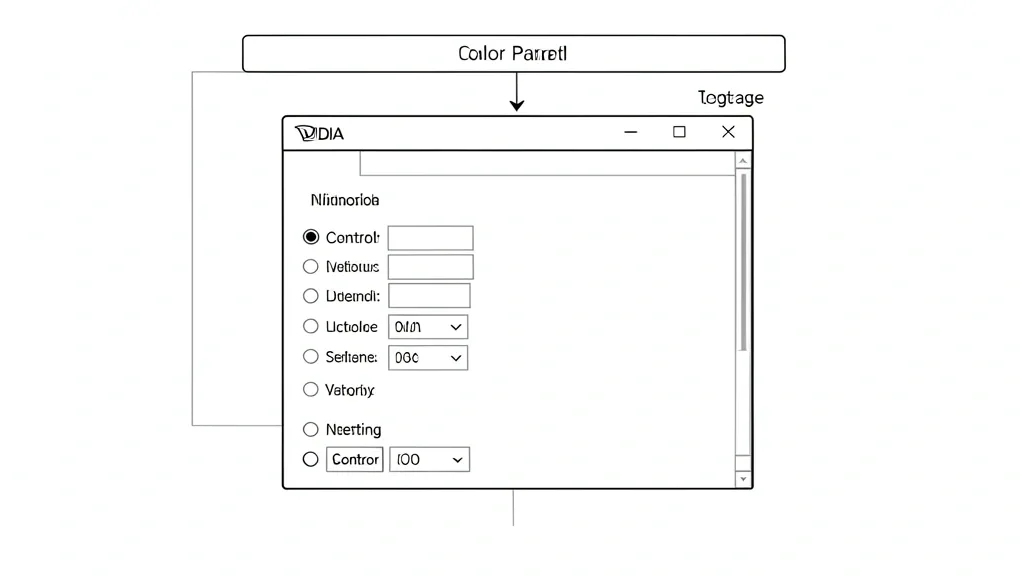
The Nvidia color pipeline bridges the gap between your GPU’s frame buffer and your monitor’s individual sub-pixels. When data leaves the GPU, simple settings often choke the signal quality. Tuning these overrides ensures that what you see on screen perfectly matches the source file. Without these adjustments, you may encounter issues described in color depth standards, where your display fails to represent the full gamut of available shades.Step-by-Step Optimization Workflow
Forcing RGB Full Color Range
By default, the Nvidia driver often selects “Limited” dynamic range. This results in clipped blacks and greyish whites, making your colors look muted. Fix it with these steps:- Right-click your desktop and open NVIDIA Control Panel.
- Go to the Display tree on the left and click Change resolution.
- Select the monitor you want to calibrate.
- Scroll down to “Apply the following settings” and click Use NVIDIA color settings.
- Critical: Change the Output dynamic range dropdown from “Limited” to Full (0-255).
- Double-check that the “Output color format” is set to RGB. While YCbCr444 is fine for some TVs, RGB is the gold standard for PC gaming and desktop apps.
- Click Apply. Your screen will flicker black for a second—that’s just the driver handshake resetting.
Fine-Tuning Color Accuracy
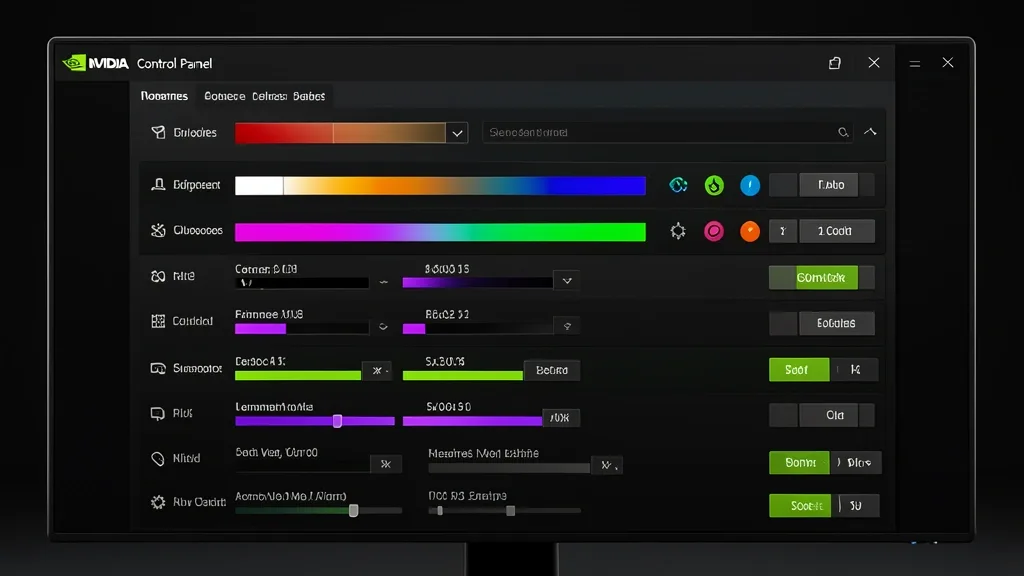
- Navigate to Display → Adjust desktop color settings.
- Select the Use NVIDIA settings radio button.
- If you’re color grading, set “Content type reported to the display” to Desktop programs.
- Use the Digital Vibrance slider carefully. A boost might make your games “pop,” but pushing it past 65% adds banding and creates unnatural skin tones in videos. For more technical audio-visual balance, you might also want to review Bose Equalizer Settings For Best Audio Output: Ultimate Guide for 2026 to complement your setup.
Nvidia Control Panel Color Settings and Display Calibration
Proper color management is not just about the GPU; it involves a holistic approach to your display output signal. When you modify your Nvidia Control Panel Color Settings, you are creating a digital LUTS (Look-Up Table) profile. For users who also manage peripheral equipment, ensuring consistency across various devices is crucial. While calibrating your monitor, you may also find it helpful to look at Alpha54 Camera Settings: Complete Pro Controller Guide if your workflow involves mixed-media inputs.Emergency Recovery and Reset Procedures
If you encounter a black screen or distorted colors after changing settings, stay calm. Use this “blind” recovery method to reset your driver.The “Panic” Hardware Reset
- Physical Reversion: If the screen goes black, wait 15 seconds. The driver will auto-revert if you don’t confirm the changes.
- Driver Reset: If things are stuck, press
Win + Ctrl + Shift + B. This forces the graphics driver to reload without needing a full system reboot. - Safe Mode Entry: If the display stays black, restart in Safe Mode. The Nvidia Control Panel won’t load here, which allows you to use DDU (Display Driver Uninstaller) or Device Manager to clean out the driver and start fresh.
- Manual NVIDIA Reset: If you can get into the control panel but the image is distorted, go to the top menu bar, click Desktop, and select Restore defaults.
Common Pitfalls and Performance Trade-offs
The biggest trap for power users is the “Digital Vibrance” slider. While a high setting makes shooters like Apex Legends look sharper, it ruins professional creative work. If you are editing in Premiere Pro or DaVinci Resolve, you need an accurate image; artificially boosted colors will lead to you over-correcting your footage. For those who frequently switch between home office and mobile audio setups, consider checking your Best iPhone EQ Settings For Cars: Complete Guide & Tips to ensure your EQ stays optimized alongside your visual settings.Watch out for Color Depth traps, too. Pushing your desktop to 10-bit color requires massive bandwidth over DisplayPort 1.4 or HDMI 2.1. If you run a high-refresh-rate monitor like a 240Hz unit, 10-bit color might force your refresh rate to drop. Always check your cable specs and monitor EDID before locking in high-depth settings.Ensuring Long-Term Profile Stability
It’s frustrating when Windows 11 HDR or software like ASUS Armoury Crate resets your carefully tuned settings on boot. This happens because Windows treats your monitor as a “Plug and Play” device and occasionally re-polls the monitor, resetting the driver parameters.To stop this, keep your monitor firmware current. Disable “Fast Startup” in your Windows Power Options, as it hibernates the kernel and often messes up the initial driver handshake. Finally, if you’re using an ICC profile, make sure it is set to “System Default” rather than “User-Specific.” If it’s set incorrectly, Windows will switch back to a default sRGB profile as soon as a color-managed app launches.Conclusion
Mastering your Nvidia Control Panel Color Settings transforms your desktop experience from standard to high-end. By ensuring your dynamic range is set to “Full” and your color depth matches your panel’s capabilities, you eliminate the washed-out grey tones that plague many out-of-the-box configurations. Keep your drivers updated and always perform a quick check after major system updates to ensure your visual preferences remain preserved.📌 Save to Pinterest